
Choose heading and body fonts that complement your page content, then apply matching colours to text, links and buttons.
Consistent styling makes your pop-ups easier to navigate, as readers can recognise the same visual cues throughout your document.
Text:
Heading Font
Choose the heading font of all your pop ups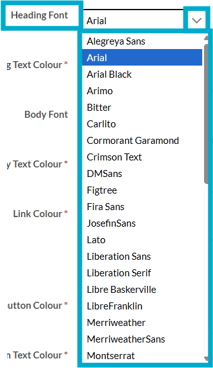
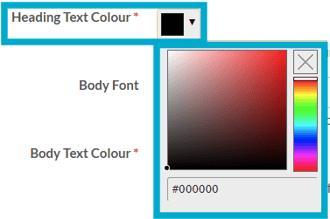
Heading Text Colour
Choose the heading text colour of your pop ups from the colour picker or with a HEX code.
Body Font
Choose the body font of your pop ups with the drop down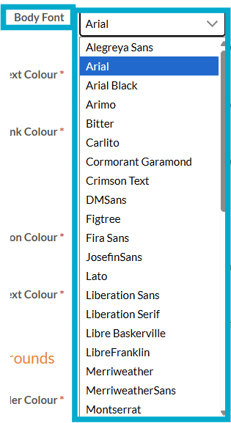
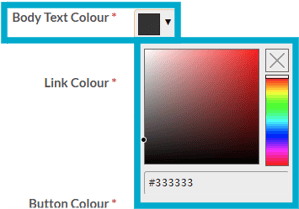
Body Text Colour
Choose the body text colour in your pop ups from the colour picker or with a HEX code.
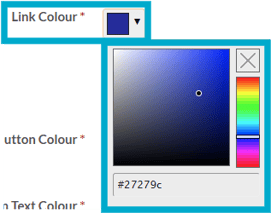
Link Colour
Choose the colour of the links in your pop ups with the colour picker or the HEX code.
Buttons:
Give your buttons a clear, consistent style so readers can easily recognise where to click.
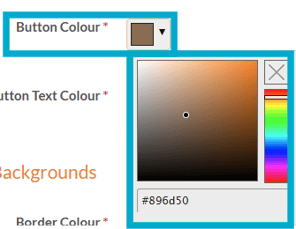
Button Colour
Choose the button colour on your pop ups with the colour picker or the HEX code.
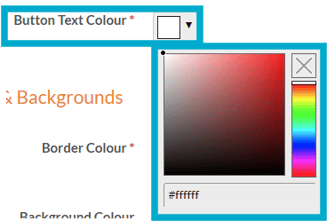
Button Text Colour
Choose the button text colour on your pop ups with the colour picker or the HEX code.
Borders and Backgrounds:
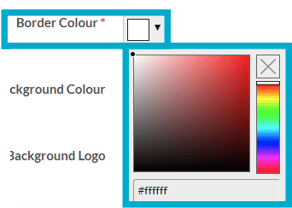
Border Colour
Apply your brand colours to pop-up borders and backgrounds for a cohesive look that fits your document’s design.
Choose the border colour of your pop ups with the colour picker or the HEX code.
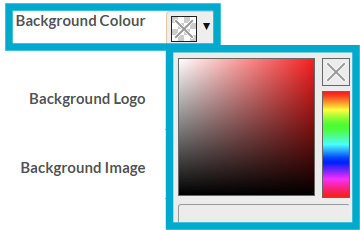
Background Colour
Choose a background colour
Background Logo
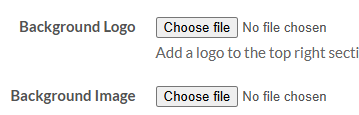
Choose a logo to add to the top right section of your pop via the 'Choose File' option.
Supported image types are JPG & PNG.
Background Image
Choose an image to add to the bottom right section of your pop via the 'Choose File' option.
Supported image types are JPG & PNG.
These elements can help reinforce your brand, but balance is important. Use them to complement your content without distracting readers from the information they need.
Horizontal Rule:
Horizontal Rule Colour
Choose your horizontal line colour here with the colour picker.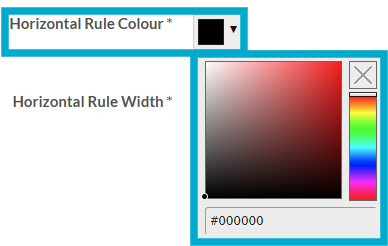
Give your pop-up a consistent, branded finish by choosing a horizontal rule colour from your brand palette.
Horizontal Rule Width
Choose the width of your horizontal line in your pop upby inputting a percentage 
This may be specified in either px, em, rem, or %. For example: 100px, 10em, 5rem, 50%
Tables:
Table Body Background Colour
Choose the colour of the table body background appearing in your pop up using the colour picker.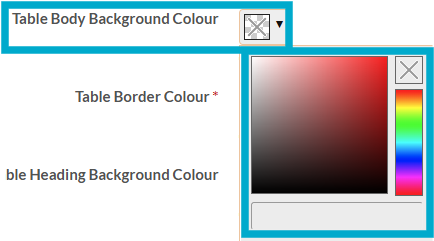
Table Border Colour
Choose the table border colour appearing in your pop ups by using the colour picker.
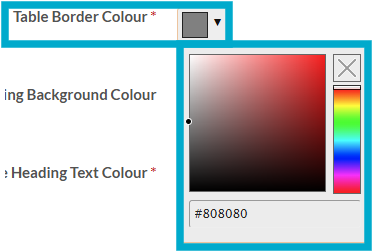
Choose a border colour that stands out against the background to clearly define each row and column.
Table Heading Background Colour
Choose heading background colour appearing in your pop ups by using the colour picker.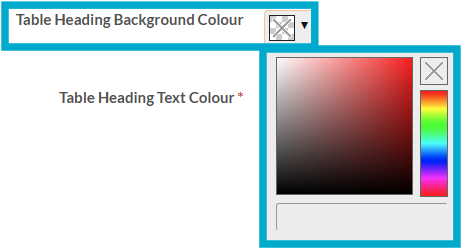
Table Heading Text Colour
Choose heading text colour in your pop ups by using the colour picker.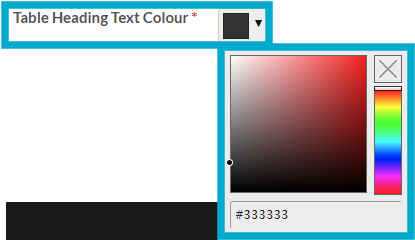
These guides may also help:
- Style Settings: Document Size
- Style Settings: Toolbar
- Style Settings: Pop ups
- Style Settings: Chart Settings
- Style Settings: Page Turn
- Style Settings: Attract Mode
- Style Settings: Used By
You can see a video walkthrough on creating Custom Styles in the PageTiger Learn Centre -> Training | Custom Styles