
Use the 'document size' tab to choose how a document fills the available space, helping you create a more comfortable reading experience.
There are two options under this tab:
-
'Stretch To Fit'
If ticked, the document will be stretched in size in order to fill the browser window. -
'Single Page Stretch to Fit'
This option controls how your document is sized when viewing in single page view.
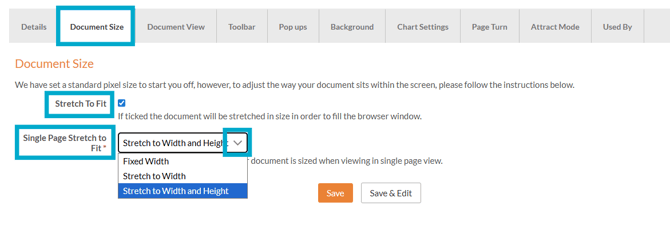
We advise keeping the ‘Stretch to Fit’ checkbox selected and choosing ‘Stretch to Width and Height’ for single page view, as this will ensure the page fits the size of the browser making it easier for your readers to read.
Once these are chosen, you can click 'Save' to save your settings or 'Save & Edit' if you plan to continue editing these style settings after saving.
These guides may also help:
- Style Settings: Toolbar
- Style Settings: Pop ups
- Style Settings: Background
- Style Settings: Chart Settings
- Style Settings: Page Turn
- Style Settings: Attract Mode
- Style Settings: Used By
You can see a video walkthrough on creating Custom Styles in the PageTiger Learn Centre -> Training | Custom Styles