
Adjust the toolbar and icon colours, choose its position and style, and add a logo that links to your website, including the colour, position, sharing options, and customisation of side arrows.
Help readers find the tools they need while keeping the appearance consistent with your brand.
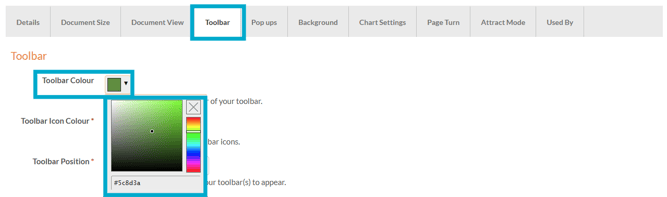
Toolbar Colour
Use the colour picker or enter a HEX code to set the toolbar colour.
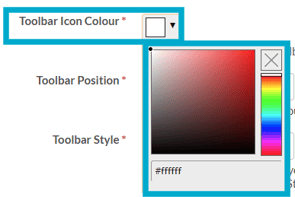
Toolbar Icon Colour
Use this setting to define the colour of the icons within the toolbar on your document
Use the colour picker or enter a HEX code to set the toolbar icon colour.
Toolbar Position
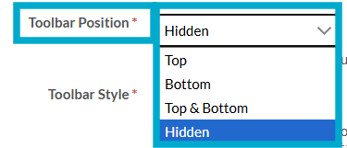
Set the position of the toolbar when the document is viewed.
The options for toolbar position are as follows
- Top
- Bottom
- Top & Bottom
- Hidden
Toolbar Style
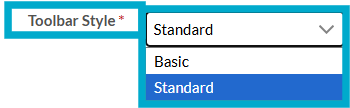
The style of the toolbar is defined by two options which are Basic and Standard.
- Basic
Basic is a smaller, compact version of Standard, with less features but simpler functionality. - Standard
Standard will make your toolbar width(s) the same size as your frame width and include all features.
Toolbar Logo
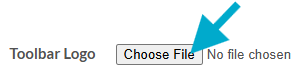
You can add a logo to your toolbar here by selecting the 'Choose File' option to upload your logo,
Your logo should be no more than 150 pixels in width, exactly 38 pixels in height and should be uploaded in jpeg, gif or png format.
Toolbar Logo Link
This would be ideal when you want readers to be able to click through to your website from any page in the document.

This setting gives you the ability to link your logo to another website address for readers to click through to.
Share Option
When ticked, it places an option in the hamburger menu on the toolbar for the reader to share the document to various social media platforms.
Search Option
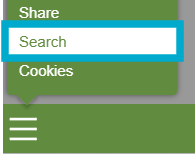
When ticked, it places an option in the hamburger menu on the toolbar for the reader to search within the document.

Download Option
When ticked, it places an option in the hamburger menu on the toolbar for the reader to download the document as PDF.
Print Option
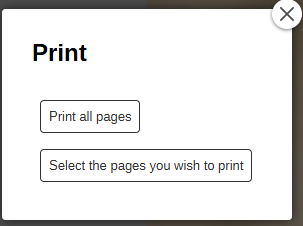
When ticked, this adds a ‘Print PDF’ option to the toolbar hamburger menu.
When clicked it will give the reader an option to either print all pages or choose specific pages to print.
Paging Option
When this option is ticked, the toolbar displays the current page number and allows the reader to jump to a specific page by clicking and entering a page number.
It also enables the left and right arrow keys on a PC or Mac, as well as left and right swiping on mobile touch devices such as iPads and iPhones.
This option helps readers navigate the document easily and keep track of their current page.
Other Version Option
This allows the reader to access other versions of the document via hamburger menu in the toolbar.
Other Languages Option
If you have this document translated into other languages, you can tick this option to allow your readers to access those other languages via the hamburger menu in the toolbar.
Contents Option
When this option is ticked, a contents list with page previews is accessible from the toolbar, allowing the reader to navigate through the document this way.
Side Arrows:
Use this setting to define the colour and behaviour of the side arrows within in your document
Side arrows
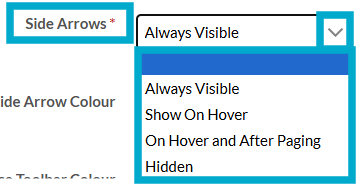
Use this drop down to select whether the side arrows should be shown and if they should, how they should behave.
The options are as follows:
-
Always Visable
-
Show On Hover
-
On Hover and After Paging
- Hidden
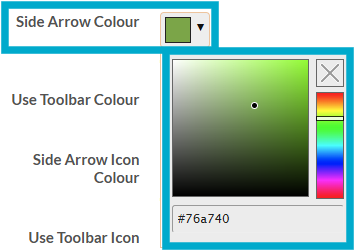
Side Arrow Colour
Use the drop down colour picker to choose the background colour of your side arrows.
Use Toolbar Colour
When ticked, the side arrows will use the toolbar's background colour instead of the side arrow colour specified above.
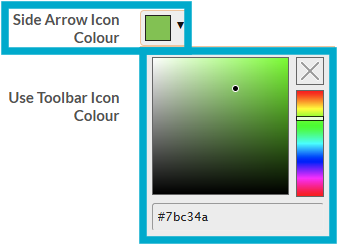
Side Arrow Icon Colour
Use the drop down colour picker to choose the colour of your side arrow icons.
Use Toolbar Icon Colour
When ticked, the side arrows will use the toolbar's icon colour instead of the side arrow icon colour specified above.
These guides may also help:
- Style Settings: Document Size
- Style Settings: Pop ups
- Style Settings: Background
- Style Settings: Chart Settings
- Style Settings: Page Turn
- Style Settings: Attract Mode
- Style Settings: Used By
You can see a video walkthrough on creating Custom Styles in the PageTiger Learn Centre -> Training | Custom Styles