Awarding Personalised Certificates in PageTiger
With PageTiger, you can award a personalised certificate automatically the moment someone passes an Assessment, so nothing is left to do by hand afterwards. Whether a visitor has finished an induction, passed a compliance test or completed a training module, it takes three steps: personalise your certificate with placeholders, attach it to a Badge, then award it from your Assessment.
Before You Start
This tutorial assumes you already have an Assessment set up and a Badge that it awards. If you don't have those yet, work through these two tutorials first.
How to Add Interactivity to Your PageTiger Document
(Assessments overview starts at 5:30)
Contents
What's Been Covered:
-
How a certificate is awarded automatically when a visitor passes an Assessment. Certificates are a good fit for training, and the same feature can also produce other personalised documents.
-
How to personalise a certificate by inserting placeholders into its panels, using existing options such as PT Issue Date or new ones you add yourself.
-
How to attach a certificate to a Badge from Documents > Settings > Badges, using the Certificate tab.
-
How the Enable Download, Filename, Internal Email and User Email settings control how a certificate reaches your visitor and your team.
-
How a placeholder can hold a fixed value or be left blank so that the visitor fills it in themselves.
-
Why the document containing your Assessment must be secured with Reader Login, Employee Number or SSO before it can award anything.
-
How to finish the setup from the Assessment's Results tab with the Edit Certificate Content button.
Recognising Achievement, Automatically
A certificate in PageTiger is a document that each visitor receives personalised to them, generated at the moment they pass an Assessment. You design it once. After that, PageTiger fills in every visitor's details, delivers the certificate and records who has received it.
Three pieces work together. The certificate is the document being awarded. The Badge acts as the trigger that tells PageTiger which document to generate. The Assessment decides when that happens. In this tutorial we'll connect all three for the Module 2 Assessment in our Leadership Fundamentals course. The same approach works beyond training, too: the design you award doesn't have to be a certificate at all.
Personalise Your Certificate
The first thing you need is the certificate your visitors will receive. You design it with the same tools as any other PageTiger document, so if you haven't built one before, The Basics series covers the whole process. What makes a certificate different is how it personalises itself for each visitor, and that comes down to placeholders.
To get started:
- Open your certificate document in Design mode
- Click the panel you want to personalise, then select Edit Content
- Position your cursor where you want the personalised text to appear
- Click the Placeholder icon {P}
- Select Existing to choose one of the pre-configured placeholders, or select Add New to create your own
For our Leadership Fundamentals certificate, we added two new placeholders, COURSE TITLE and FULL NAME, and chose PT Issue Date from the pre-configured list. The headline carries [COURSE TITLE]. The body reads "This certificate has been awarded to: [FULL NAME]", followed by "On the: [PT Issue Date]".
You'll also come across placeholders in other PageTiger documents, but in a certificate they pull in each visitor's own details, such as their name or the date, automatically. Preview the certificate to check that your placeholders fill in correctly. Once you're happy with it, the certificate is ready to be awarded. For a full walkthrough of this step, see Certification: Step 1.
Add the Certificate to Your Badge
Next, attach the certificate to a Badge, which tells PageTiger when to generate it. We already have a Badge for Module 2, so we'll use that one rather than creating a new Badge. If you haven't built yours yet, follow the Badges tutorial first.
To get started:
- Click Documents
- Select Settings
- Select Badges
- Open your existing Badge (in our example, Module 2)
- Select the Certificate tab
- Choose your certificate by selecting its Folder, then Document, then Version
- Check the preview to confirm you've picked the right design
A few settings on the same tab decide how the certificate is delivered:
- Enable Download lets visitors download their certificate from their own reader account whenever they like.
- Filename sets the name of the generated PDF.
- Internal Email and User Email let you choose whether your team, your visitor or both get an email when a certificate is awarded.
- Custom Email Fields lets you write a personalised message for those emails, using the same placeholders as your certificate design.
A placeholder can also work in two ways here. If you type in a fixed value, it appears the same way on every certificate. If you leave it blank, PageTiger asks the visitor to fill it in before their certificate is generated.
Click Save, and your Badge is ready to award a certificate as soon as someone completes Module 2. For the full list of settings, see Certification: Step 2.
Secure Your Document
Before PageTiger can award anything from a document, it has to know who is viewing it. That means the document containing your Assessment must be secured with Reader Login, Employee Number or SSO. In our example, Leadership Fundamentals Module 2 already has Reader Login Required ticked on its Security Rules tab.
If your document isn't secured this way yet, the Badges tutorial shows you how to set it up, and How to apply a Security Rule to a Document covers each step in detail.
Award the Certificate
With your document secured, the last step connects everything. Your Assessment should already award your Badge from its Results tab. In our example, the Module 2 Assessment awards the Module 2 Badge in Leadership Fundamentals.
To get started:
- Open the Assessment's Results tab and check that your Badge is selected in the Award Badge dropdown
- Click the Edit Certificate Content button, which appears now that the Badge has a certificate attached
- Type a short message for your visitor, for example: "Well done, you have passed! We need a few details so we can produce your certificate."
- Click Save
Your certificate is now live. For more detail on this final step, see Certification: Step 3.
That's everything. You design your certificate once and connect it to a Badge and an Assessment. From then on, PageTiger recognises every visitor who earns it, automatically, and keeps a full record for you in the Awarded To list.
Creating Menus and Navigation in PageTiger
With your Style in place, see how to build a menu that connects your documents together - giving readers a fully branded, easy-to-navigate experience.
 Building a Scored Assessment with Advanced Scoring Mode
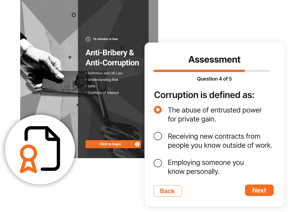
Your certificate is awarded from a Result on your Assessment. Next, learn how to build a scored Assessment with result bands, so you can decide exactly which outcome earns it.
FAQs
How do I award a certificate automatically in PageTiger?
Design your certificate, attach it to a Badge on the Badge's Certificate tab, and make sure your Assessment awards that Badge from its Results tab. When a visitor passes, PageTiger generates their personalised certificate automatically.
How do I add a visitor's name to a certificate?
Insert a placeholder. In Design mode, click the panel, select Edit Content, place your cursor, click the Placeholder icon {P}, and choose a pre-configured placeholder such as PT Issue Date, or add a new one such as FULL NAME.
Can visitors download their certificate?
Yes. Tick Enable Download on the Badge's Certificate tab, and visitors can download their certificate as a PDF from their reader account whenever they like. The Filename field sets what that PDF is called.
Can PageTiger email the certificate when it's awarded?
Yes. The Internal Email and User Email settings let you notify your team, your visitor or both when a certificate is awarded. Custom Email Fields lets you personalise those emails with your certificate's placeholders.
What happens if I leave a placeholder blank?
PageTiger asks the visitor to fill it in before their certificate is generated. If you enter a value instead, that value appears the same way on every certificate.
Does my document need a Security Rule to award a certificate?
Yes. The document containing the Assessment must be secured with Reader Login, Employee Number or SSO, so that PageTiger knows who has earned the certificate.
Do I need to create a new Badge for my certificate?
No. You can attach a certificate to an existing Badge by opening it from Documents > Settings > Badges and selecting the Certificate tab.
Where can I see who has been awarded a certificate?
PageTiger records every certificate it awards, so you can see who has received one in the Awarded To list.